
Show
From raw footage to a finished clip. On your Mac.
Show cuts dance and class videos on the beat, lays music underneath in time, softens the background and lets the camera follow the couple. Everything runs on your Mac, no upload, no browser tab.
Version 0.13· Mac with Apple Silicon · macOS 13+ · updates itself
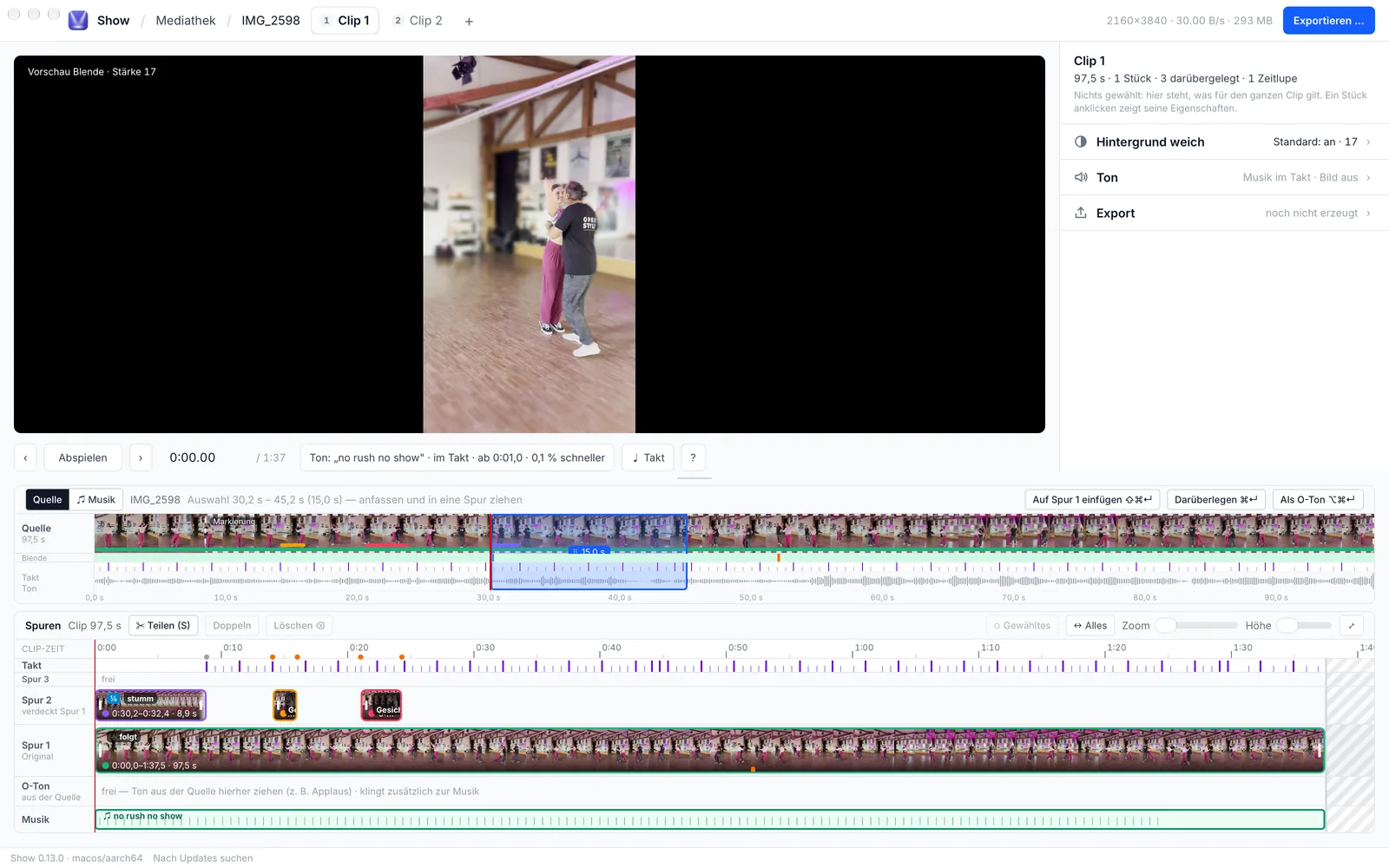
Show on the Mac — the workshop with preview, tracks and sidebar.
- 1Open a video
- 2Cut on the beat
- 3Soft background
- 4Camera, slow motion, sharpness
- 5Music underneath
- 6Render and save
1 · Open a video
From your Mac or from the media library.
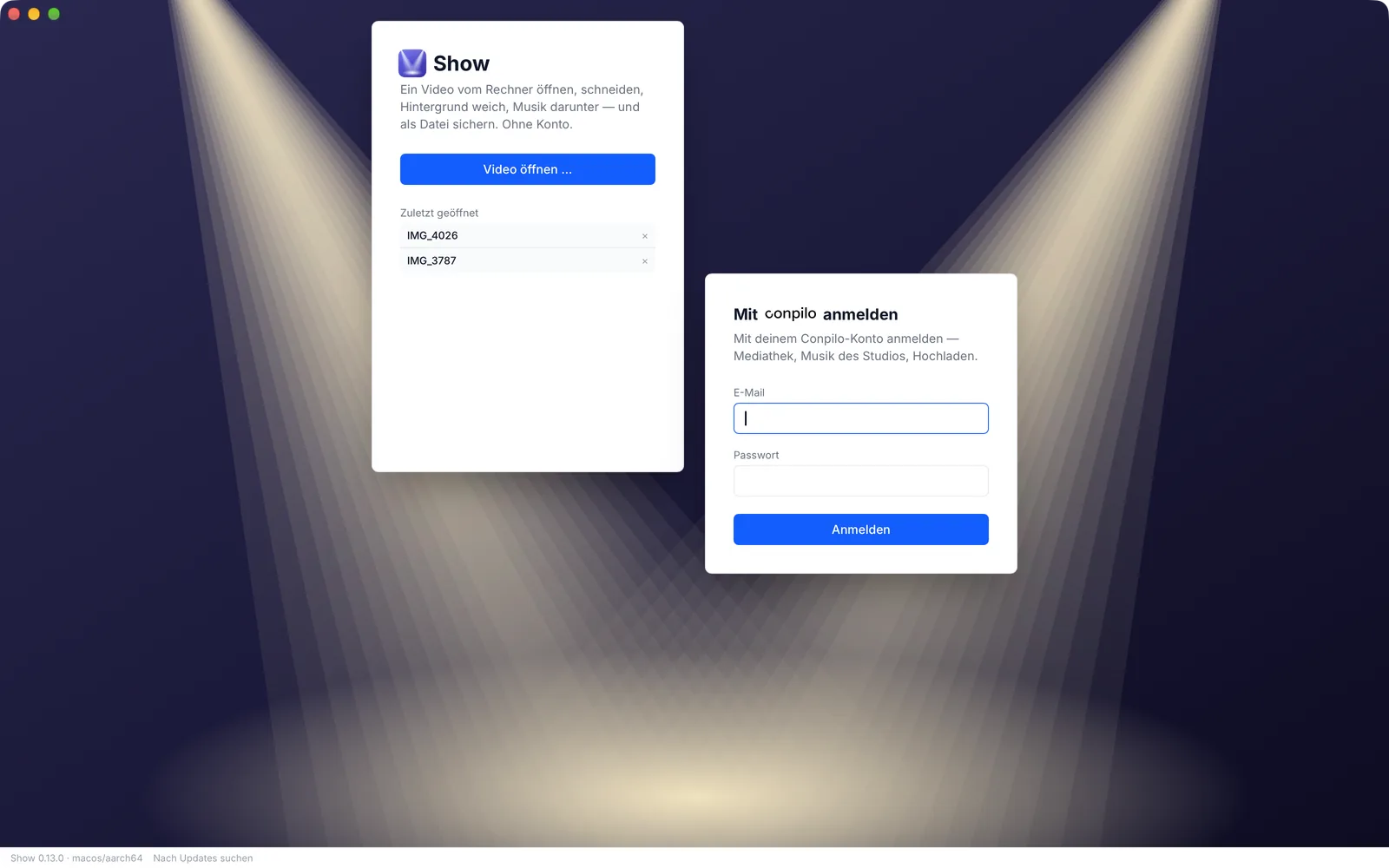
Open a video with “Open video …”. The file stays where it is, Show makes no copy. With a Conpilo account you see your studio’s media library instead and work on the marks already set there.
- Without an account: video, music and the finished clip stay on your Mac
- With Conpilo: videos and music come from the studio, the clip goes back there
2 · Cutting
Cuts that land on the beat.
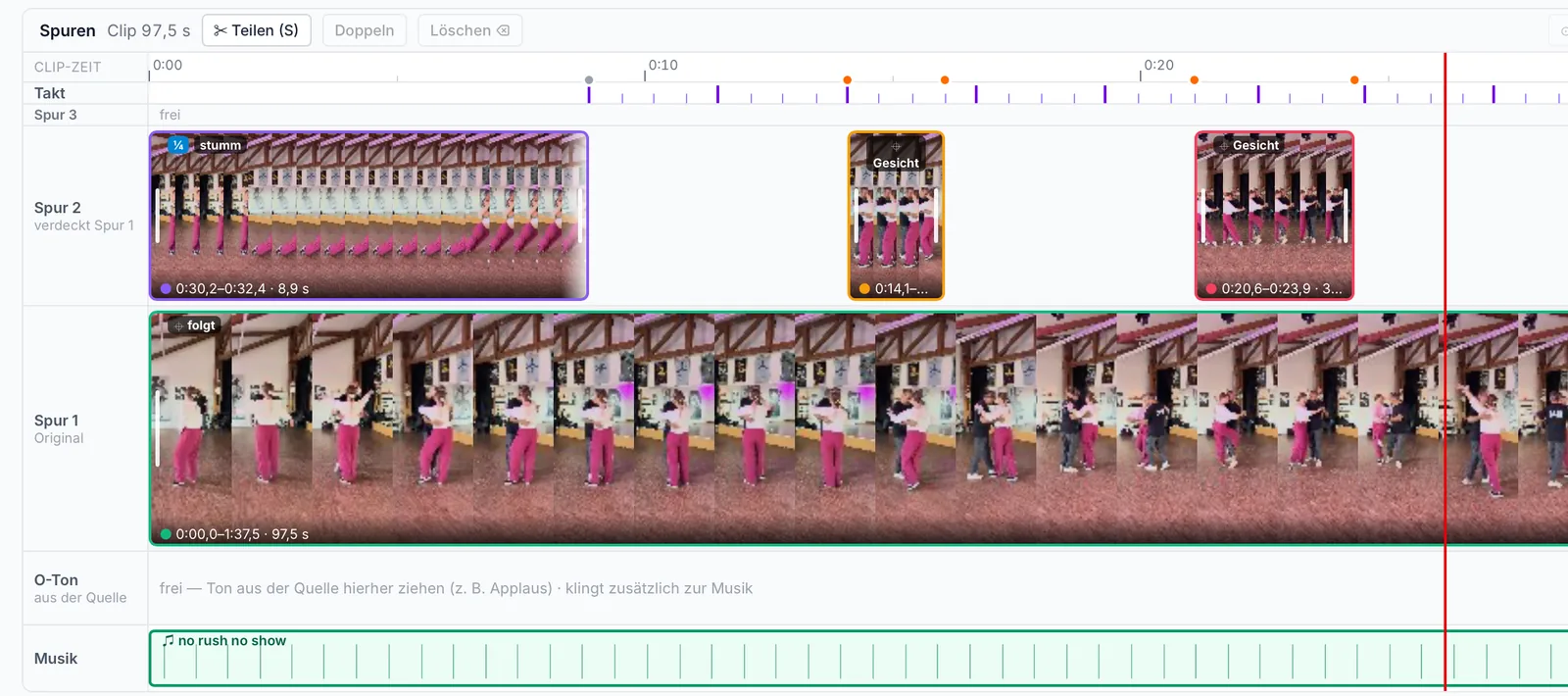
Show measures the tempo of the recording itself and lays the beats as a grid over the tracks; the long lines are the one. Splitting snaps to the next beat, and so do pieces and edges as you drag them. If an edge sits off the beat, Show marks it, so the music stays in time even when you trim.
- S splits the piece at the playhead on the beat, ⌥S without snapping
- ⌫ deletes the selection, ⌘Z brings it back
- K clicks along on every beat
3 · Background
Soft background, the couple stays sharp.
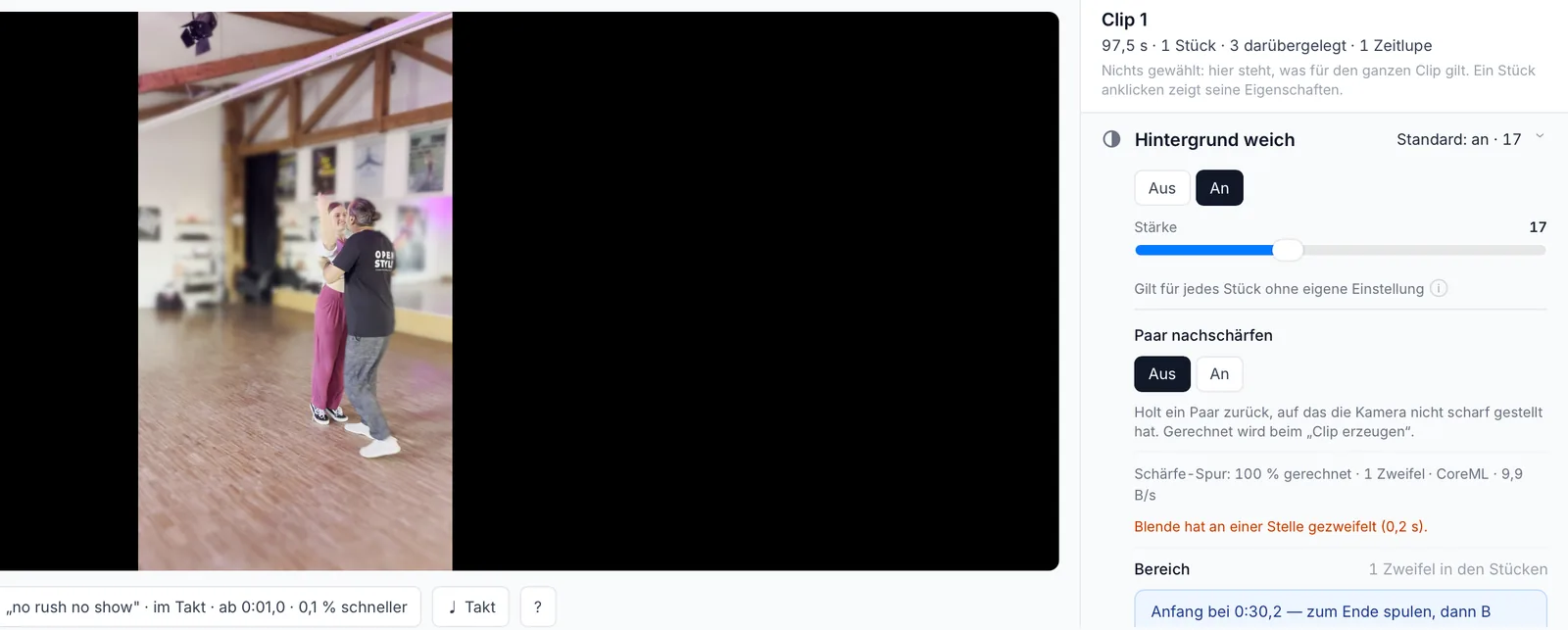
A depth model estimates for every frame what is near and what is far, a person model finds the dancers. From that, Show softens the background like a fast lens would. Where Show is unsure, it colours the spot orange in the timeline. One click on the couple in the preview tells Show who should stay sharp.
- Strength by slider, for the whole source or per piece
- “Show focus” (P) and one click on the couple: the focus holds across the range
4 · Camera, slow motion, sharpness
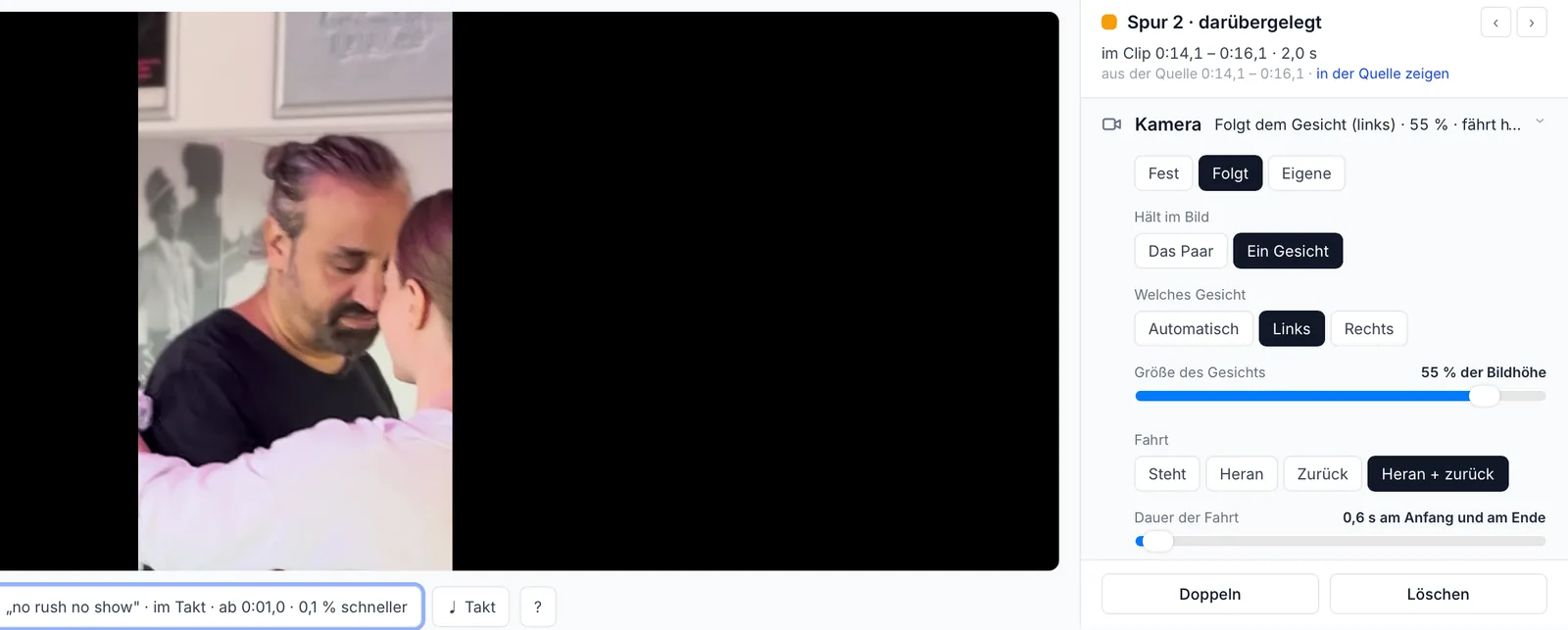
The camera follows the couple.
With “Follow”, the frame moves along, keeps the couple’s size and never cuts anyone off. Or it goes right up close to a face, with a camera move in and back out. Slow motion computes the missing frames in between instead of doubling frames. And if the camera wasn’t quite in focus, “sharpen couple” sharpens the dancers.
- “One face” right up close, a move in and back out, a “zoom” transition at the cut
- Your own zoom track: Z sets a keyframe, ⇧Z removes it
- Slow motion with in-between frames, per piece
- “Sharpen couple” for missed focus
5 · Music
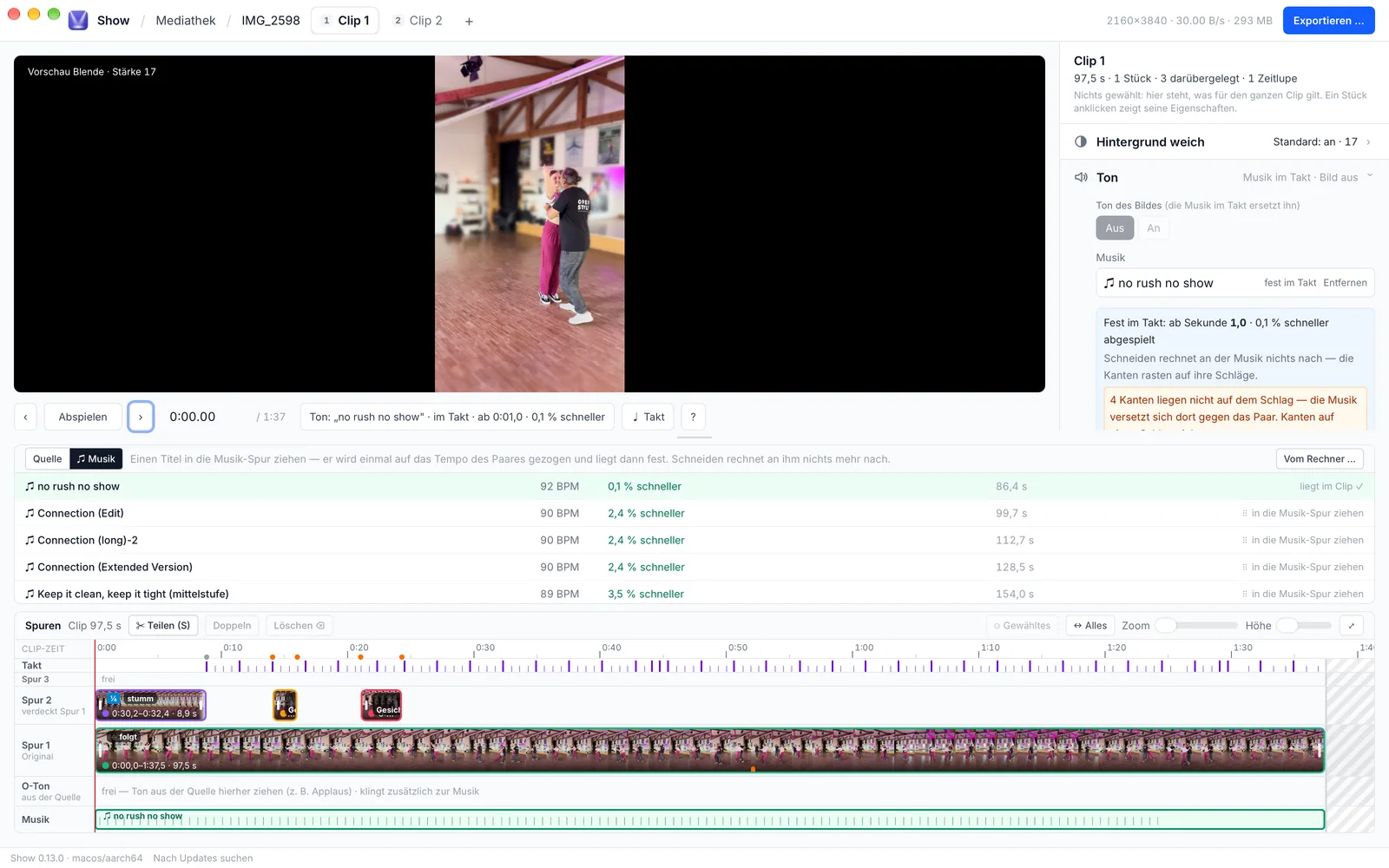
Music that lands on the beat.
Pick a track; Show knows its tempo too and lays it under the clip so the beats line up. You hear the mix right away as you play. Take the picture’s own sound out entirely or keep it running, and add applause or an announcement as live sound.
- “♫ Music” and “From your Mac …” or from the studio’s music library
- Drag where the music starts and ends in the track
- M toggles sound during playback
6 · Export
Render, save, done.
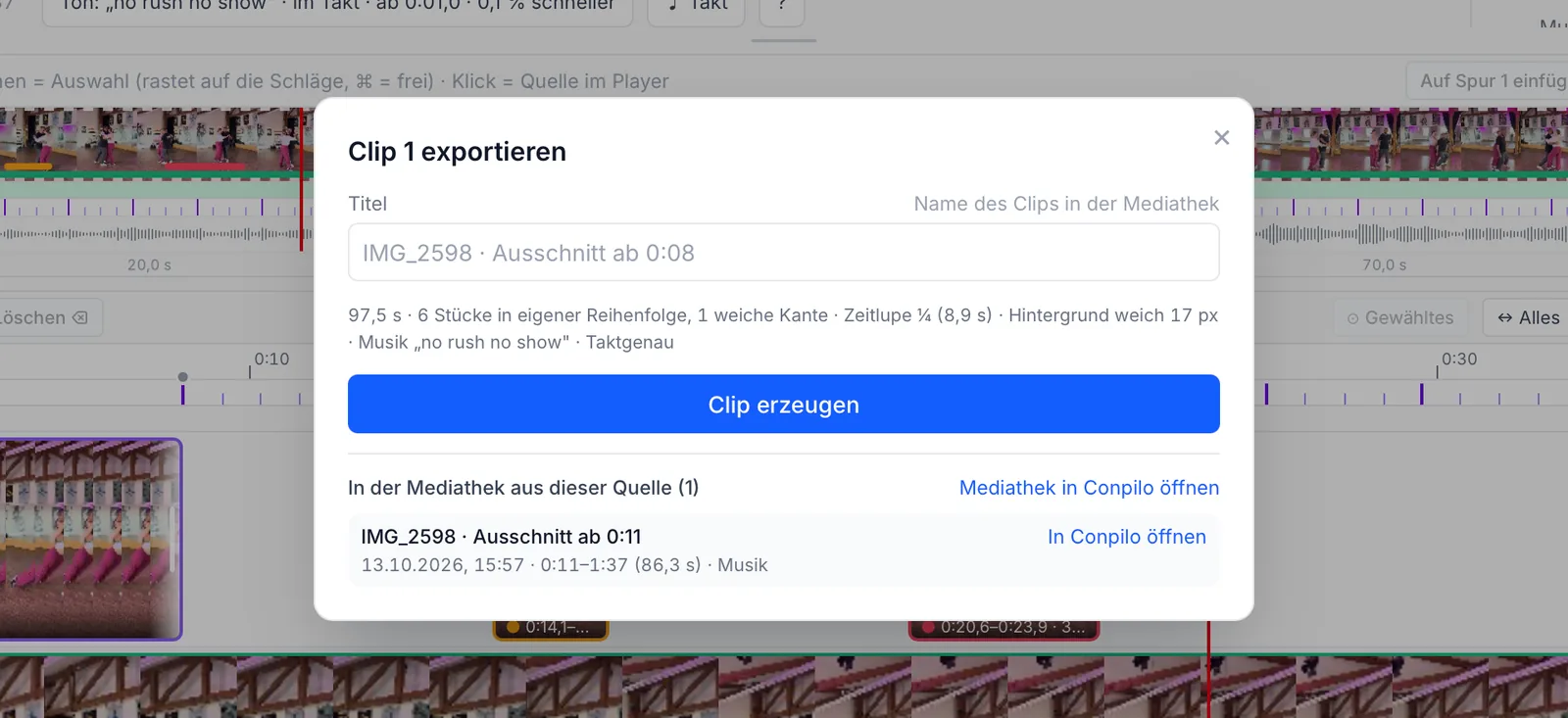
Show renders the clip on your Mac, with a bar showing how far along it is. Then you save it as a file to a folder of your choice. With Conpilo it goes straight back to the studio’s media library, ready for class, website or social media.
- “Create clip”, then “Save as file …” or “Show in Finder”
- With Conpilo: upload and open in Conpilo
With or without Conpilo
Works on its own. And fits Conpilo.
Without an account
- Videos and music from your Mac
- Marks stay on your Mac
- Finished clip as a file
With Conpilo
- Videos from the studio’s media library
- The studio’s music library
- The clip goes back to Conpilo
On your Mac
Your videos stay with you.
All models for beat, background, slow motion and sharpness run on your Mac with Apple Silicon. No video goes to a third-party server.
- Computes locally, offline too
- Signed and notarized by Apple
- Updates arrive on their own
Show for your Mac.
Mac with Apple Silicon, macOS 13 or later. Questions or ideas? Write to me.
Show by conpilo